
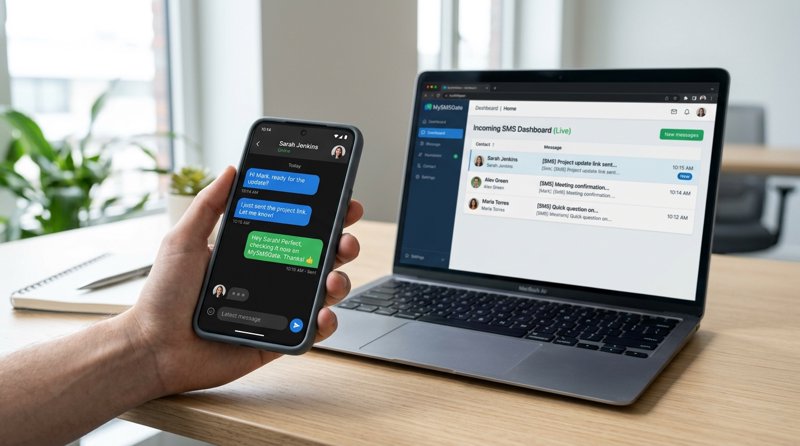
Receiving SMS messages is just as crucial as sending them for many businesses and applications. If you're wondering "smsgate how to received sms" and effectively manage incoming texts, MySMSGate offers a powerful, flexible, and cost-effective solution. This guide will walk you through setting up your MySMSGate account to seamlessly receive SMS messages directly to your web dashboard or integrate them into your systems via webhooks, all powered by your own Android phone and SIM card.
Step 1: Create Your MySMSGate Account
The journey to effortlessly receive SMS messages begins with setting up your MySMSGate account. This process is quick, straightforward, and requires no commitment, as MySMSGate operates on a pay-per-SMS model without any monthly fees or contracts.
Here’s how to get started:
- Visit the MySMSGate Website: Navigate to mysmsgate.net.
- Sign Up: Click on the "Sign Up" or "Get Started Free" button. You'll typically need to provide an email address and create a password.
- Confirm Your Account: Follow the instructions to verify your email address. Once verified, you'll gain access to your personal MySMSGate dashboard.
Upon successful registration, your dashboard will immediately present you with your unique API key and a QR code. These are essential for connecting your Android phone, which acts as the crucial link for both sending and receiving SMS messages. Keep these details secure, as they are your credentials for accessing the MySMSGate service.
Ready to begin? Create your free account now and unlock the power of your own SMS gateway.
Step 2: Connect Your Android Phone to MySMSGate
Your Android phone is the heart of your MySMSGate SMS gateway. It utilizes your phone’s existing SIM card(s) to send and receive SMS messages, bypassing traditional carrier fees and complex registrations like 10DLC. Connecting your phone is designed to be seamless:
- Install the MySMSGate Android App: On your Android smartphone, open the Google Play Store and search for "MySMSGate". Download and install the official MySMSGate app.
- Launch the App and Scan QR Code: Open the MySMSGate app on your phone. You will be prompted to connect your device. Navigate back to your MySMSGate web dashboard on your computer and locate the unique QR code.
- Scan and Connect: Use the MySMSGate Android app to scan the QR code displayed in your web dashboard. This instant scan securely links your phone to your MySMSGate account, eliminating the need to manually type in API keys or complex credentials.
- Grant Permissions: The app will request necessary permissions (e.g., to send and receive SMS, access contacts). Grant these permissions for the app to function correctly as an SMS gateway.
Once connected, your Android phone becomes an active part of your MySMSGate network. It will automatically forward all incoming SMS messages to your web dashboard and be ready to send outgoing messages using its SIM card. MySMSGate supports dual SIM phones, allowing you to manage incoming messages from two separate numbers on a single device, and you can connect an unlimited number of Android phones to one account, perfect for multi-branch businesses or managing multiple numbers.
The app also includes an auto wake-up feature via push notifications, ensuring your phone stays connected and ready to receive messages even when in sleep mode, providing reliable "android app sms api" functionality without constant manual checks.
Step 3: Receive SMS Messages in Your Web Dashboard (No Coding Required)
For non-technical users, small businesses, or anyone who prefers a visual interface, MySMSGate's web dashboard provides an intuitive way to receive and manage all your incoming SMS messages. This feature transforms your browser into a powerful communication hub, offering a seamless "eigener sms chat" experience.
Here’s how incoming SMS messages appear and can be managed:
- Real-time Delivery: As soon as an SMS is received by your connected Android phone, it's instantly forwarded to your MySMSGate web dashboard. You'll see new messages appear in real-time, often accompanied by a notification.
- Web Conversations Interface: MySMSGate features a "Web Conversations" section, designed like a modern chat application. All your incoming SMS messages are organized into chat threads, making it easy to follow conversations with your customers, clients, or contacts.
- Multi-Device, Multi-Number Management: If you have multiple Android phones connected to your MySMSGate account (e.g., for different business branches or departments), all incoming messages from all connected numbers will converge into one centralized dashboard. You can easily switch between devices and SIM slots to see which number received the message and choose which one to reply from.
- Reply Directly from Your Browser: The web conversations interface allows you to reply to incoming SMS messages directly from your computer. This eliminates the need to pick up your phone, streamlining your customer service, support, or marketing efforts.
- Comprehensive Message History: All incoming and outgoing messages are logged and archived in your dashboard, providing a complete communication history for easy reference and auditing.
This method is ideal for businesses managing customer inquiries, appointment confirmations, support requests, or any scenario where direct, conversational SMS communication is key. It provides a robust and accessible way to receive SMS without any coding or complex setup.
Step 4: Programmatically Receive SMS via Webhooks (for Developers)
For developers, startups, and businesses looking to automate workflows and integrate SMS receiving capabilities into their existing applications, MySMSGate offers robust webhook functionality. Webhooks provide real-time notifications for incoming SMS messages, allowing your systems to react instantly.
How Webhooks Work for Incoming SMS
When an SMS is received by your connected Android phone, MySMSGate doesn't just forward it to your dashboard; it can also send an HTTP POST request to a URL you specify. This request, known as a webhook, contains all the details of the incoming message, allowing your application to process it programmatically.
Setting Up a Webhook
To configure a webhook for incoming SMS messages:
- Log in to Your MySMSGate Dashboard: Navigate to the settings or API section.
- Specify Your Webhook URL: Enter the URL of your endpoint that will listen for incoming POST requests. This is where MySMSGate will send the incoming SMS data.
- Save Changes: Ensure your webhook URL is saved.
You can find detailed instructions and more advanced configurations in the MySMSGate API documentation.
Example Webhook Payload for Incoming SMS
When an SMS is received, MySMSGate will send a JSON payload similar to this to your configured webhook URL:
{
  "id": "msg_uuid_12345",
  "type": "incoming",
  "from": "+1234567890",
  "to": "+1987654321",
  "message": "Hello, I received your message!",
  "device_id": "device_uuid_abcd",
  "sim_slot": 0, // 0 for SIM 1, 1 for SIM 2
  "timestamp": 1678886400
}
Simple Code Example: Receiving Webhooks (Python Flask)
Here's a basic Python Flask example to illustrate how you might set up an endpoint to receive and process MySMSGate webhooks. This provides a clear demonstration of how to implement an "android sms api" listener.
from flask import Flask, request, jsonify
import logging

app = Flask(__name__)
logging.basicConfig(level=logging.INFO)

@app.route('/webhook', methods=['POST'])
def receive_sms_webhook():
    if request.is_json:
        data = request.get_json()
        logging.info(f"Received incoming SMS webhook: {data}")

        # Extract relevant information
        message_id = data.get('id')
        sender_number = data.get('from')
        receiver_number = data.get('to')
        message_content = data.get('message')
        device_id = data.get('device_id')
        sim_slot = data.get('sim_slot')

        # Process the incoming SMS (e.g., store in DB, trigger another action)
        print(f"New incoming SMS from {sender_number} to {receiver_number} (Device: {device_id}, SIM: {sim_slot}): {message_content}")

        # You might want to add logic here to send a response SMS using MySMSGate API
        # For example: mysmsgate_api.send_sms(sender_number, "Thanks for your message!")

        return jsonify({"status": "success", "message_id": message_id}), 200
    else:
        logging.warning("Received non-JSON webhook request.")
        return jsonify({"status": "error", "message": "Request must be JSON"}), 400

if __name__ == '__main__':
    # Remember to use a proper WSGI server like Gunicorn for production
    # For local testing, you can run: python your_app_name.py
    # And expose it to the internet using ngrok for webhook testing
    app.run(port=5000, debug=True)
This example demonstrates how your application can listen for incoming SMS, parse the data, and then perform any desired action, such as logging the message, triggering an automated response, updating a CRM, or forwarding to another service. MySMSGate also integrates seamlessly with automation platforms like Zapier, Make.com, and n8n, allowing non-developers to create powerful workflows for incoming SMS without writing a single line of code.
Why MySMSGate is the Smart Choice for Receiving SMS
When considering how to receive SMS messages for your business or application, several factors come into play: cost, reliability, compliance, and ease of integration. MySMSGate stands out as a superior alternative to traditional SMS providers like Twilio or Vonage, especially for those seeking control and cost-efficiency. It leverages your existing Android phones to provide a unique and advantageous SMS gateway solution.
Unbeatable Cost-Effectiveness
Traditional SMS APIs often come with per-message fees that can quickly add up, alongside monthly charges and number rental costs. For instance, Twilio typically charges $0.05-$0.08 per SMS plus various fees. MySMSGate offers a transparent and highly competitive pricing model:
- $0.03 per SMS: Enjoy one of the lowest per-message rates in the industry.
- No Monthly Fees, No Contracts: Pay only for what you use. This model is ideal for small businesses, startups, and freelancers who need flexibility.
- No Number Rental Fees: Since you're using your own SIM cards, there are no recurring costs for virtual phone numbers.
- Failed SMS Refund: Your balance is automatically refunded for any SMS that fails to deliver, ensuring you only pay for successful messages.
No 10DLC, No Carrier Approval Needed
One of the biggest headaches for businesses sending and receiving SMS in the US and Canada is 10DLC registration and carrier approval. MySMSGate completely bypasses this complex and often costly process. By using your own Android phone and SIM card, your messages are treated as peer-to-peer (P2P) communication, eliminating the need for sender registration, making it an ideal "android sms api" solution for small businesses.
Enhanced Reliability and Control
With MySMSGate, you have direct control over your SMS infrastructure. Your Android phone acts as your personal SMS gateway, giving you:
- High Deliverability: Messages are sent and received through actual mobile networks via your SIM, often leading to higher deliverability rates compared to some A2P (Application-to-Person) routes that can be subject to filtering.
- Dual SIM Support: Utilize both SIM cards in your Android phone to manage incoming messages from two distinct numbers through a single device.
- Multi-Device Management: Connect unlimited Android phones to your account, allowing you to manage multiple numbers from different locations (e.g., store branches) all from one central dashboard.
- Dedicated Numbers: Each SIM card provides a dedicated phone number for receiving SMS, ensuring clear and consistent communication channels.
Flexibility for All Users
Whether you're a developer or a non-technical business owner, MySMSGate caters to your needs:
- User-Friendly Web Dashboard: The "Web Conversations" interface offers a chat-like experience for managing incoming messages, perfect for customer support or sales teams.
- Powerful REST API: For developers, the simple REST API and real-time webhooks (as demonstrated in Step 4) provide the tools to integrate SMS receiving into any application or workflow.
- Integrations: Seamlessly connect with popular automation tools like Zapier, Make.com, and n8n to build custom workflows for incoming SMS without writing code.
| Feature/Provider | MySMSGate | Twilio (Typical) | SMSGateway.me |
|---|---|---|---|
| Cost per SMS (Receive) | $0.03 | $0.05 - $0.08 + fees | Included in monthly fee |
| Monthly Fees | No | Yes (for numbers) | $9.99/month+ |
| 10DLC/Carrier Approval | No (uses own SIM) | Required for US/CA A2P | No (uses own SIM) |
| API for Developers | Yes (REST, Webhooks) | Yes (REST, Webhooks) | Yes (REST, Webhooks) |
| Web Dashboard for Users | Yes (Web Conversations) | Yes (Flex) | Yes |
| Multi-Device Support | Unlimited phones | N/A (virtual numbers) | Limited by plan |
| Dual SIM Support | Yes | N/A | N/A |
| Failed SMS Refund | Yes | No (typically) | N/A |
| Setup Difficulty | Easy (QR code) | Moderate (API keys, config) | Easy (QR code) |
For those specifically looking for an "android sms api" solution that offers both powerful backend integration and an easy-to-use frontend, MySMSGate provides a comprehensive and compelling package.
Frequently Asked Questions (FAQ)
How quickly do I receive incoming SMS messages?
Incoming SMS messages are received by your connected Android phone instantly, just like a regular text message. MySMSGate then forwards these messages to your web dashboard or webhook endpoint in real-time, typically within seconds. The speed largely depends on your phone's network connectivity and internet access.
Can I receive SMS from multiple phone numbers?
Yes, absolutely. MySMSGate supports receiving SMS from multiple phone numbers in several ways. If your connected Android phone has dual SIM capabilities, you can receive messages from both SIM slots. Furthermore, you can connect an unlimited number of Android phones to your MySMSGate account, each with its own SIM card(s). All incoming messages from all connected numbers will be consolidated and managed from your central web dashboard or delivered to your configured webhooks.
Is there a limit to how many SMS I can receive?
MySMSGate does not impose a specific limit on the number of SMS messages you can receive. The primary limitations would be those of your mobile carrier (e.g., if your SIM plan has a monthly receiving cap, which is rare for incoming messages) and the processing capacity of your connected Android phone. For typical business use, MySMSGate can handle a very high volume of incoming messages reliably.
What happens if my Android phone is offline?
If your connected Android phone is offline (e.g., no internet connection, powered off, or MySMSGate app is not running in the background), it cannot receive or forward SMS messages to your MySMSGate dashboard or webhooks. Messages sent to your SIM card while the phone is offline might be stored by your mobile carrier and delivered once the phone comes back online, depending on carrier policies. MySMSGate includes an auto wake-up feature via push notifications to help keep your phone connected and the app running for consistent service.
Do I need a special SIM card to receive SMS?
No, you do not need a special SIM card. MySMSGate works with any standard, active SIM card from any mobile carrier that is capable of sending and receiving SMS messages. You simply use the SIM card(s) already in your Android phone.


Comments (0)
Be the first to comment!